
The Timeline and the Xsheet
Cells, holds, keys and exposure, on the Timeline or typed into the Xsheet.
Timing is where you decide which drawing shows on which frame, and how long it stays. Buhayin gives you two views of the same timing. The Timeline lays frames out left to right, a row for each layer. The Xsheet lays them out down the page, a column for each layer, as on paper. Edit in either and the other follows, and undo covers both.
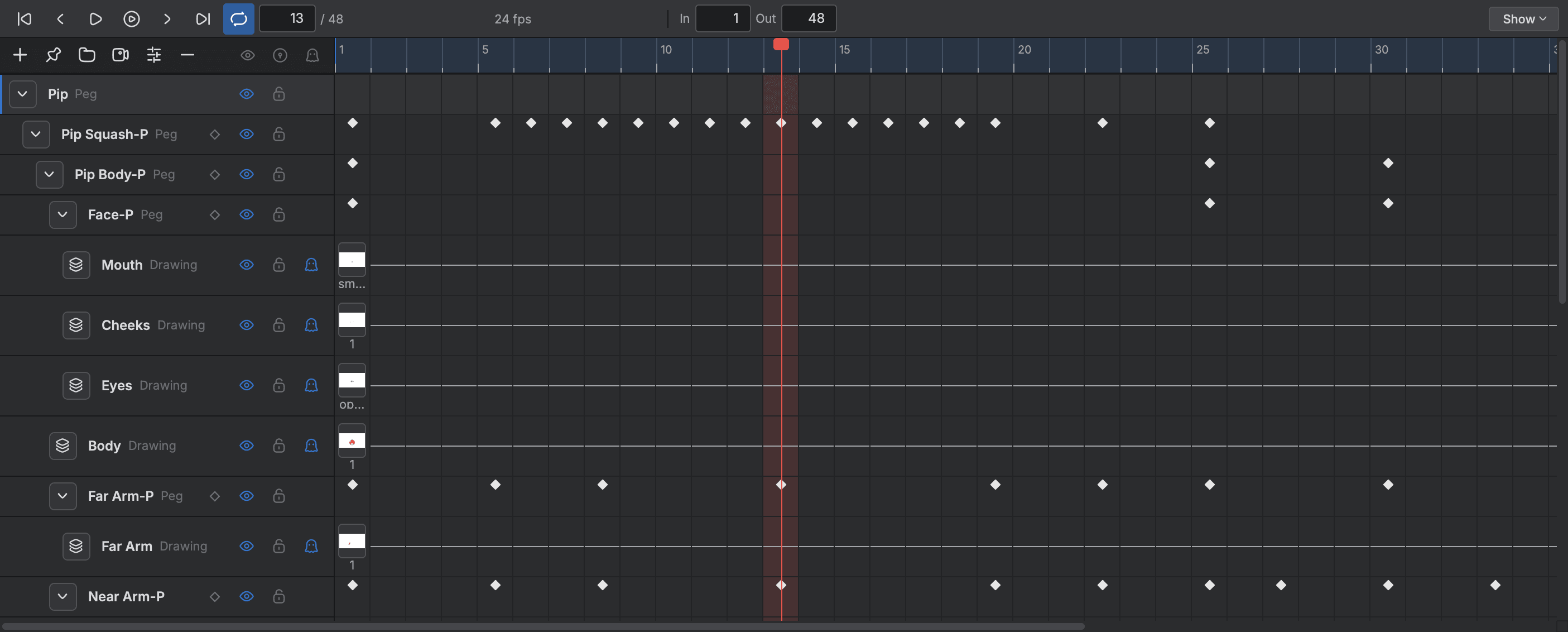
Read the Timeline
Along the top is the ruler with the frame numbers and the playhead. Under it is one row for each layer, the top layer first.
- On the left of a row: the layer's name, its eye (show or hide), its lock and its light table button.
- Across a row: a small box where a drawing starts, with its name, and a line that runs on while the drawing is held. A blank frame has no box.
- A diamond is a key. Keys appear on peg rows and on any layer you have animated.
The bar over the Timeline has the transport: go to the first frame, step back, play, step forward, go to the last frame. Next to them are the loop button, the current frame box with the scene's length after it, the frame rate, and the In and Out boxes that set the playback range. The Show menu chooses which rows are listed.
To go to a frame, click the ruler or type a number in the frame box. Home and End go to the first and last frame.
Add layers and drawings
- Choose
Scene > Add layer(Cmd+R). A new drawing layer gets a row. The buttons at the top left of the Timeline add a layer, a peg, a group, a camera or a controller too. - Click a cell on the layer's row to select it.
- Press
N, or chooseDrawing > Create Empty Drawing. A new drawing is made in that cell. On the Timeline's right click menu the same command is New drawing in this cell. - Draw. Your lines go in that drawing.
To start the next drawing from the one you have, press Cmd+D (Drawing > Duplicate to the next frame). To rename or delete a drawing, use Drawing > Rename drawing… or Drawing > Delete drawing.
Hold a drawing
A hold keeps a drawing on screen for several frames. These all act on the layers and cells you have selected.
- Press
+(or=) forAnimation > Hold longer. The drawing stays one frame more, and everything after it moves later. - Press
-forAnimation > Hold shorter. - Choose
Animation > Exposure > On 1s,On 2s,On 3sorOn 4sto hold each selected drawing for that many frames.Set Exposure…asks for any number. - Use
Extend Exposure…(F5, inAnimation > Cell) to hold the drawing under the playhead on to a frame you type. - Use the Held for readout in the status bar at the bottom of the window. Click its value and type a number.
Other commands in Animation > Cell, and in the right click menu of a cell:
Insert Blank Cellputs an empty frame in.Clear Exposure and Pullremoves the cells and closes the gap.Fill Empty Cellsfills blanks with the drawing before them.Create Cycle…repeats the selected cells a number of times.
To insert or remove frames on every layer at once, use Scene > Insert frame and Scene > Delete frame. They say frames in the plural when you have selected a range.
Move and copy cells
Select cells by clicking or dragging across them. Then:
- Drag the selected cells to carry them to another frame or another row. An outline shows where they will land.
- Hold
Cmdwhile you drag to copy them instead. - Hold
Optionto close the frames they leave and push the cells they land on out of the way. - Press
Escapewhile dragging to drop the carry.
Cmd+C, Cmd+X and Cmd+V copy, cut and paste cells. Paste starts at the first frame you have selected. Cmd+A selects every cell of every layer while the Timeline has focus.
Keys
A key records a value of a layer at a frame, such as where a peg is or how far it is turned. Between two keys the value changes by itself, so you set the poses and Buhayin makes the frames between.
Cmd+K(Animation > Keyframes > Set Motion Keyframe) makes a key on the selected layers at the playhead.Cmd+L(Set Stop-Motion Keyframe) makes a key that holds its value until the next key. It is drawn dark red.F7deletes the keyframe, andDelete Keyframesin the same menu does it for every selected key.- Right click a key for its menu.
Set Ease Typehas ten ready made eases, andSet Ease on Selected Keyframes…asks for an ease in and an ease out, as percentages. Option+Fshows or hides the channels of every keyed layer under their rows.
Animating a rig with keys is covered in Animating a rig.
The Xsheet
Open the Xsheet from the Window menu. Frames run down the left. Each layer is a column across, and a held drawing is written once with a line down to where it ends.
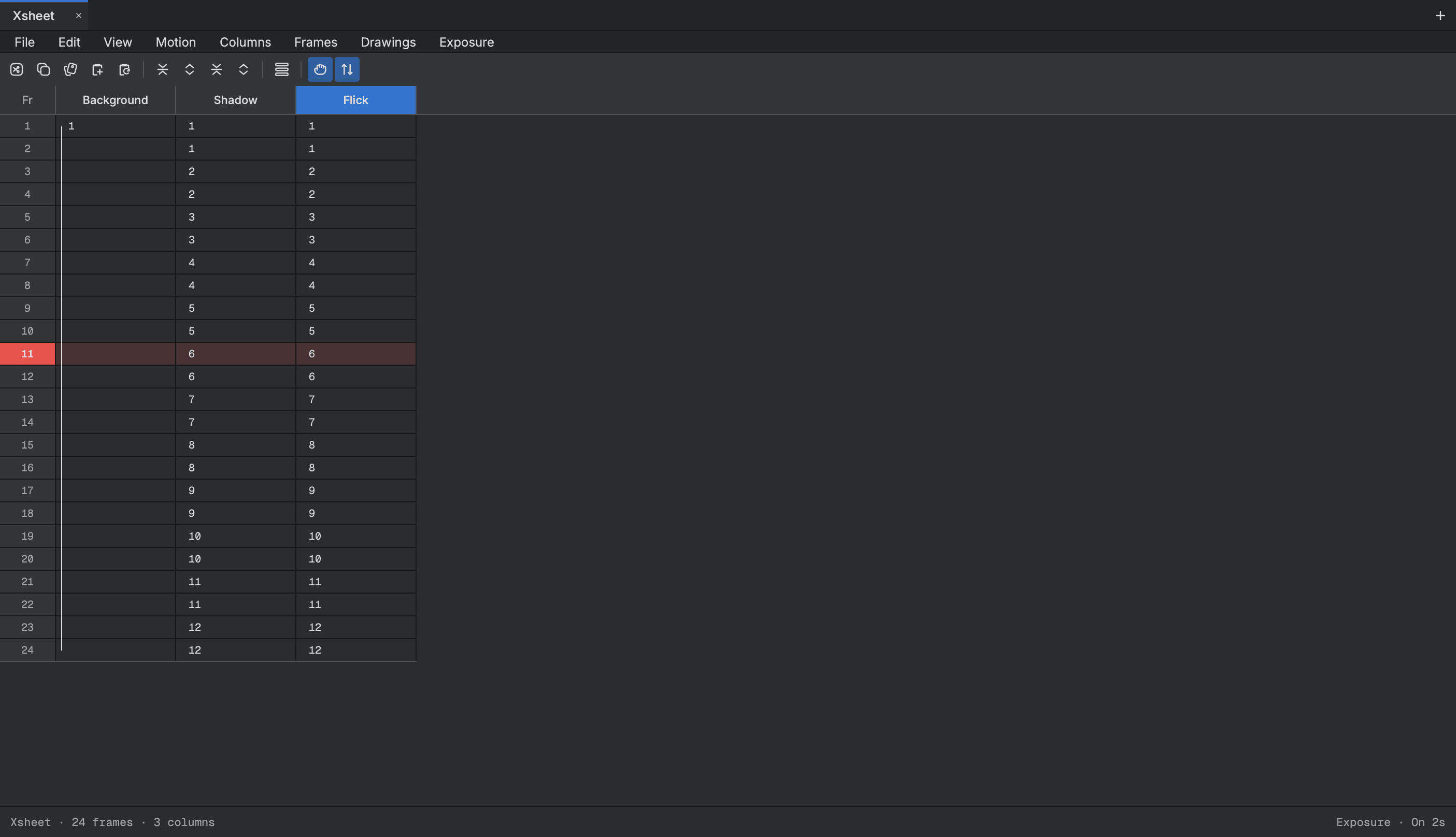
Type your timing
- Click the cell where a drawing should start.
- Type the drawing's name.
- Press
Enter.
The name holds for the hold value, and the cursor goes down by that many rows. The hold value is 1 until you change it in Hold Exposure (in the Xsheet's Exposure menu, and in Animation > Cell): choose Hold 2 Cells, for example, to type timing on twos. The hold value is saved with the scene.
Some keys work in a cell:
- A key that starts a name is its first letter, so a tool's key never gets in the way.
Iturns Insert Mode on or off, fromEdit > Insert Modein the Xsheet. With it on, a typed name puts the blank cells in and pushes the rest down. A name starting with I cannot be typed while it is on.Shift+Jis Insert Blank Cell.- On a sound column a letter is a mouth shape, which sets lip sync.
A column that follows a keyed value with a Bezier or Ease curve takes a number you type. Typing the number puts that value on as many rows as the hold value, and makes a key where there is none.
The Xsheet's menus
The Xsheet has its own menu bar with File, Edit, Motion, Drawings, Exposure, View, Columns and Frames.
ExposureholdsExtend Exposure…, the fills,Insert Blank Cell,Clear Exposure and PullandHold Exposure.Fill Selection…andSequence Fill…fill selected cells from a name, a start, an increment and a hold.DrawingshasRename by Frame, which names each selected drawing for the frame it first shows on.ColumnshasAdd Columns…, clone, duplicate, merge andDelete Columns.Framesadds frames at the start or end, or before or after the selection, and removes selected frames.Viewhas zoom andHide Selected Columns(Option+H),Unhide All ColumnsandShow Hidden Columns…(Option+Shift+H).FilehasPrint…andExport PDF…, so you can hand the sheet to someone as paper.
Cells select and drag in the Xsheet as in the Timeline, and the two share one selection. A cell you select on one is selected on the other.