The projects window
Find, open, make, rename, copy and trash projects.
What a project is
A project is a folder. It holds one or more scene files, which end in .bhy, and the pictures and sound the scenes use. A scene saved by an earlier Buhayin, ending in .buhayin.json, still opens, and saving it writes it as .bhy. The projects window lists the projects in your Projects folder, newest first.
A new project is made with one scene called Scene 1, at 24 frames a second. You can change the frame rate and the size later under Scene > Scene Settings….
Buhayin opens on the projects window when you start it without a file. You can get back to it from the editor with File > Back to Projects (Cmd+Shift+H).
Make a project
- Choose New Project at the left of the tool bar.
- Type a name in the Name box. The box suggests "Squirrel tail overlap" as a model.
- Choose Create Project.
The editor opens on the new project. The window says what to expect: "Nothing is drawn yet. The first frame is yours." You can rename the project at any time.
A name can be up to 80 characters. It cannot be empty, cannot start or end with a full stop, cannot contain / \ : * ? " < > |, and cannot match a project that is already there. Buhayin tells you which rule a name breaks.
Open a project
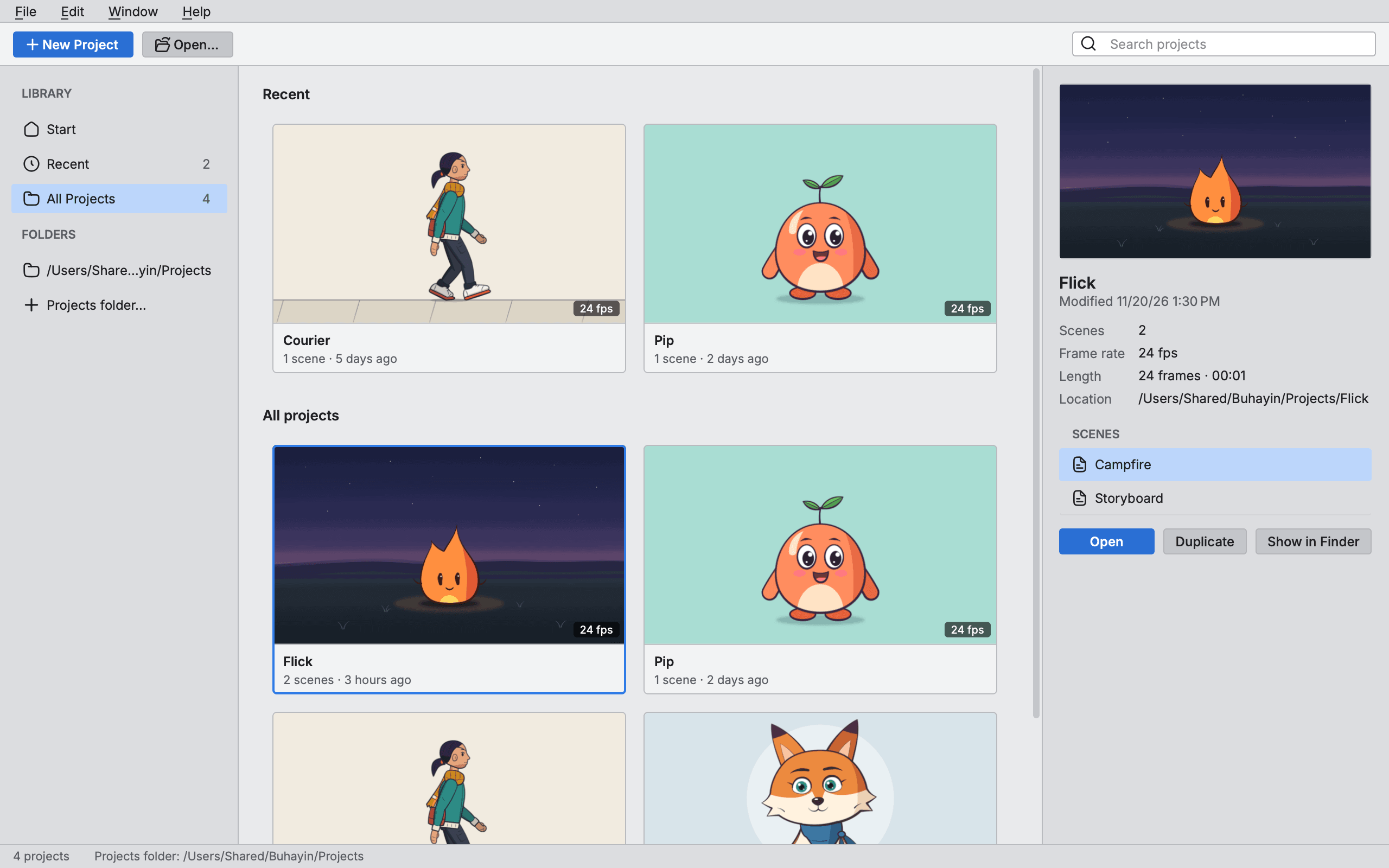
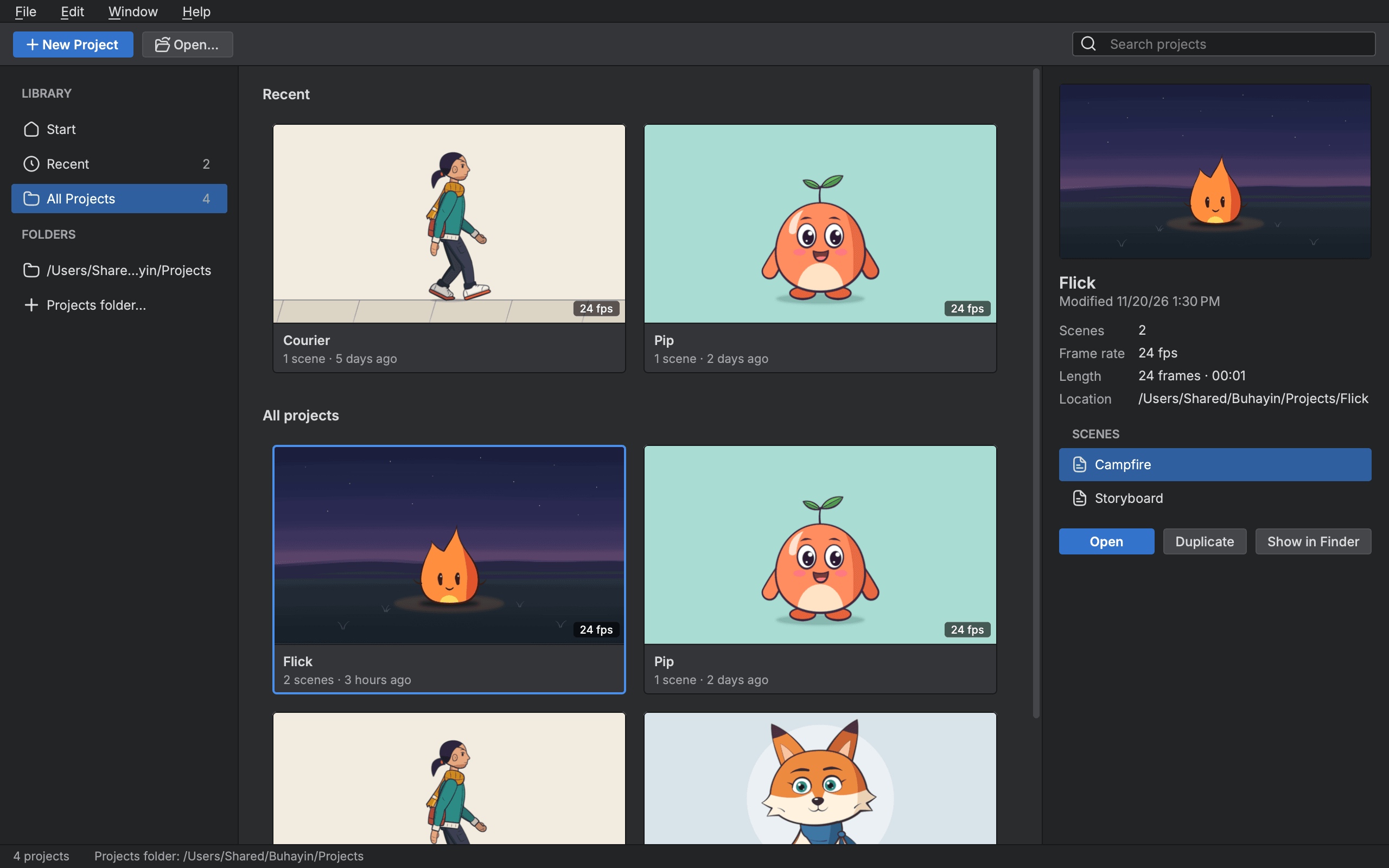
- Choose a card to see the project's picture, frames and scenes at the right, then choose Open, or double click the card. All projects in the side bar lists every project. Recent lists the scenes you opened last, and the page shows them as cards under Recent once there are more than three projects.
- To open a scene file that is not in your projects folder, choose File > Open… (
Cmd+O), or Open… in the tool bar. - File > Open Recent lists the scenes you opened lately, with Clear Recent at the end.
- Double click a scene file in Finder and Buhayin opens it.
Each card shows a picture of the project, how many frames it has and, when there is more than one, how many scenes.
Find a project
Click the Search projects box in the tool bar, or press Cmd+F, and type part of a name. The cards narrow as you type. Closing the search clears it. If nothing matches, the page says "Nothing matched."
Rename, copy, export or trash a project
Open the menu on a card. For a project in your projects folder it offers four things.
- Rename asks for a new name ("New name.") and keeps every frame where it is. Choose Save Name.
- Duplicate makes a copy called "name copy", then "name copy 2" and so on.
- Export opens the project in the editor with the Export dialog showing. See Exporting.
- Delete asks "Delete it?" and says the project and every frame in it go to the Trash. Choose Delete Project.
Buhayin never deletes a project outright. It moves the folder to the system Trash, and you can put it back from there.
The details at the right also offer Duplicate and Show in Finder. A project that sits outside your projects folder has one entry on its card, Show in Finder. Rename, duplicate and delete only work on projects in the projects folder.
Choose where projects live
The projects folder is a folder called Buhayin inside your Documents folder until you choose another.
- Look at the Folders list in the side bar. It names the folder you have now, and the status line at the bottom gives its path.
- Choose Projects folder… in that list.
- Pick a folder.
The page rebuilds to list the projects in the new folder. Projects in the old folder stay where they are.
The menus
The projects window has its own menu bar.
| Menu | Entries |
|---|---|
| File | New Project…, Open…, Open Recent, Quit |
| Edit | Undo, Redo, Cut, Copy, Paste, Select All, Preferences |
| Window | Minimise, Zoom, Bring All to Front |
| Help | Buhayin Features, Connect an AI, Licences, About |
The projects window wears the same theme as the editor. You choose it in Edit > Preferences on the Appearance page; see Workspace.