
Animation, under your control.
A professional animation workspace that combines traditional creative tools with AI-assisted production. Create, direct, and iterate without sacrificing creative control.
For macOS 14.2 or later, on Apple silicon
One workspace
Every stage of a 2D film, in one native editor.
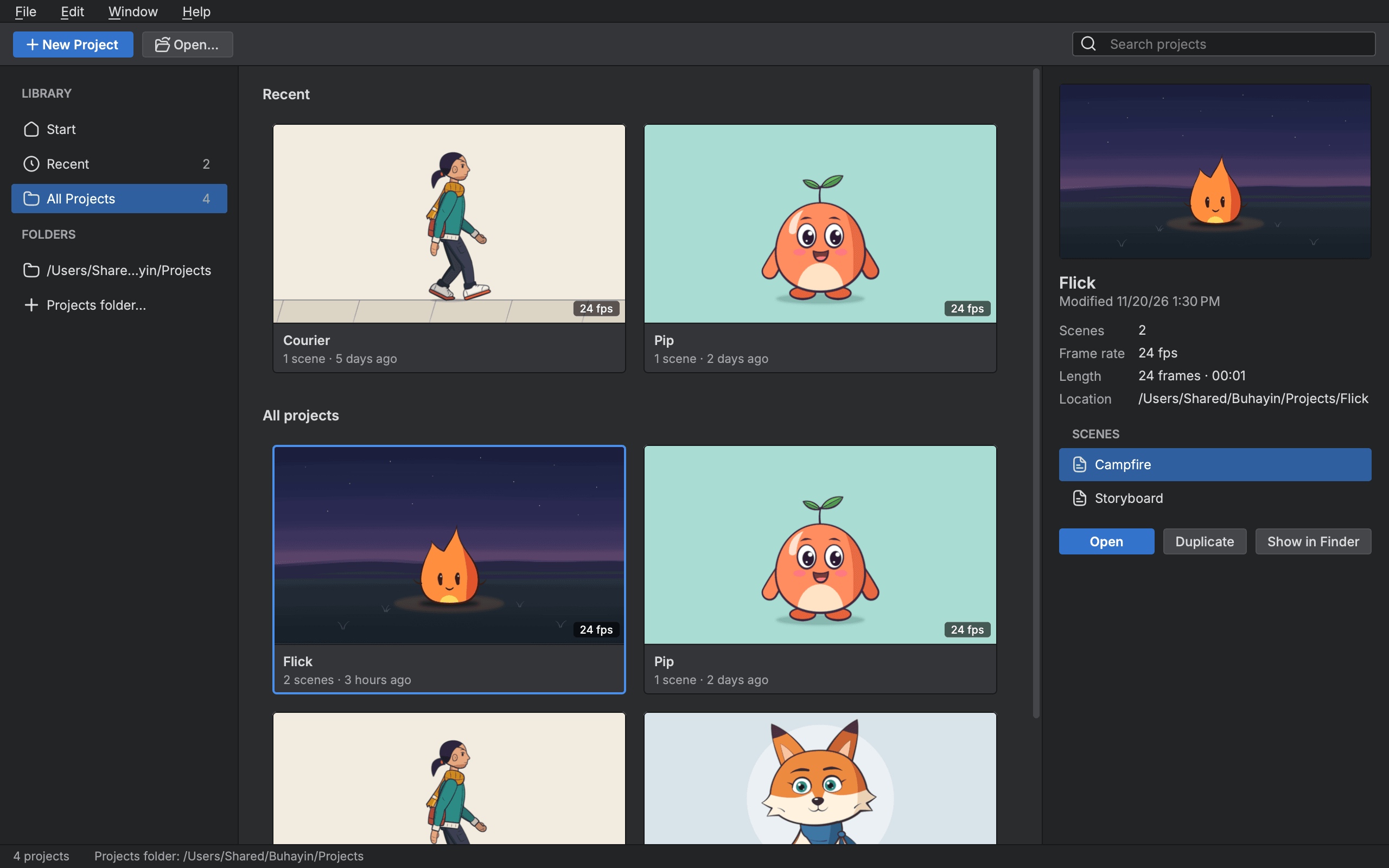
Board the film, draw and time it, rig the characters, compose the shots and export the result, without moving work between programs. A project is a folder on your computer, and every scene is a file in it.
- 01
Storyboard
Panels, shots and sequences with captions, and the scenes they lead to.
- 02
Layout
The Production board follows each scene through its stages.
- 03
Animation
The Timeline, the Xsheet and the Function view.
- 04
Compose
Nodes, effects, mattes and the camera.
- 05
Export
Movies, frame sequences, GIFs and sprite sheets.
Core animation
Draw, time and pose with the depth production asks for.
Vector and bitmap drawing, a Timeline and an Xsheet over the same timing, and characters built once from pegs, bones and deformers, then posed again.
Draw
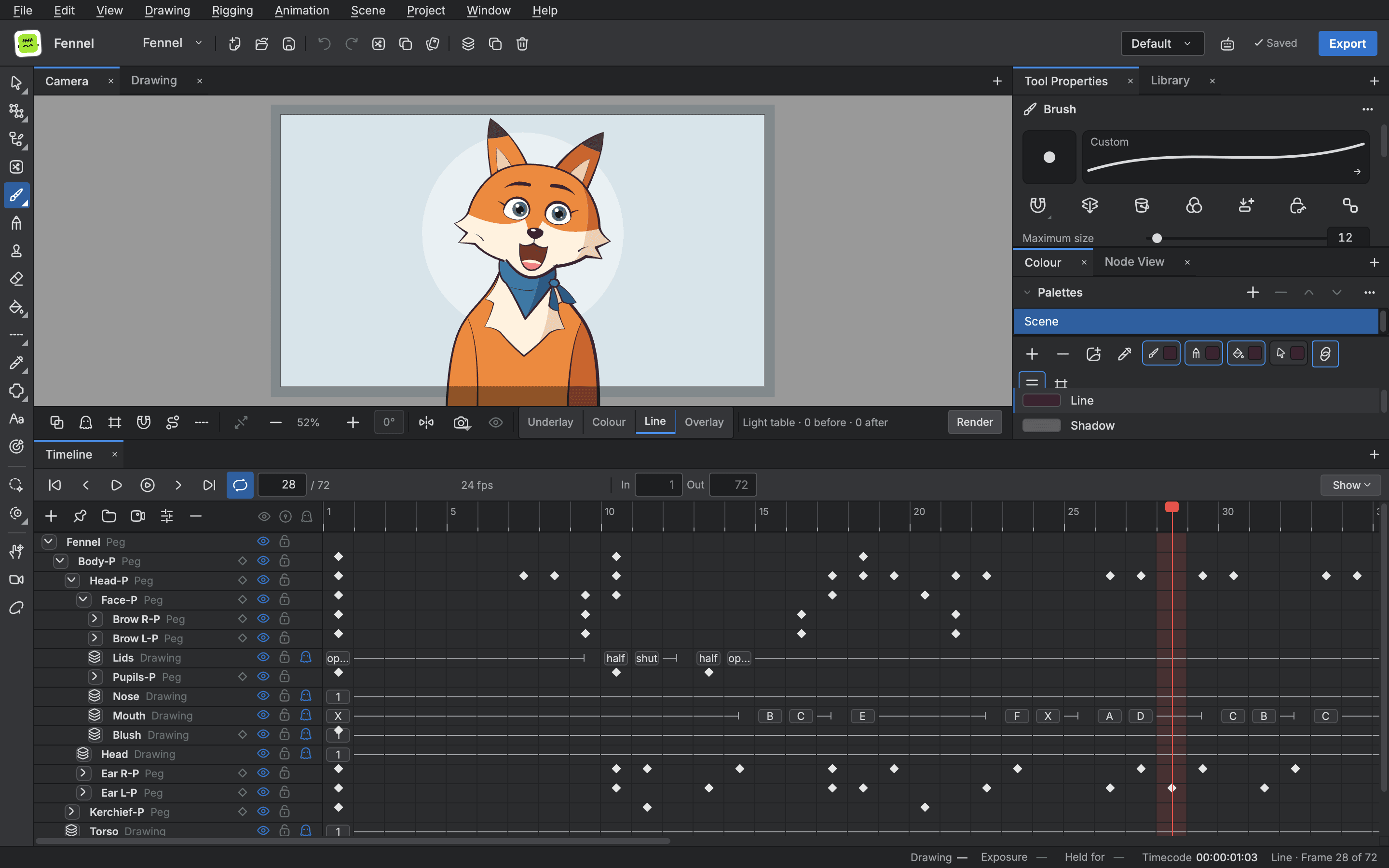
Drawing and frame editing
Vector and bitmap layers side by side, drawn with pressure sensitive brushes and pencils.
- Vector and bitmap layers
- Pressure sensitive pens
- Fills that close gaps
- Onion skin and guides
Animate
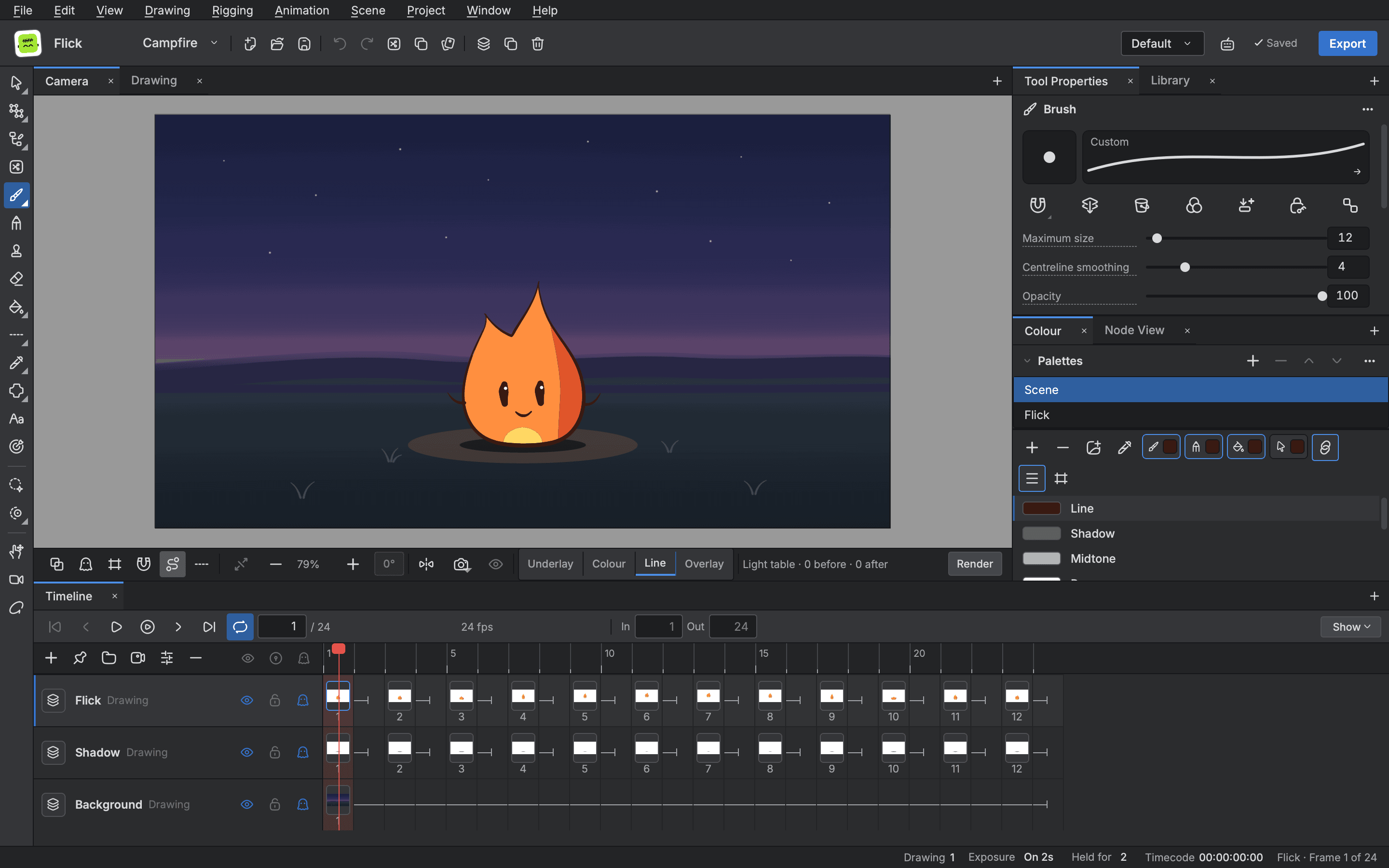
Timeline based animation, and the Xsheet beside it
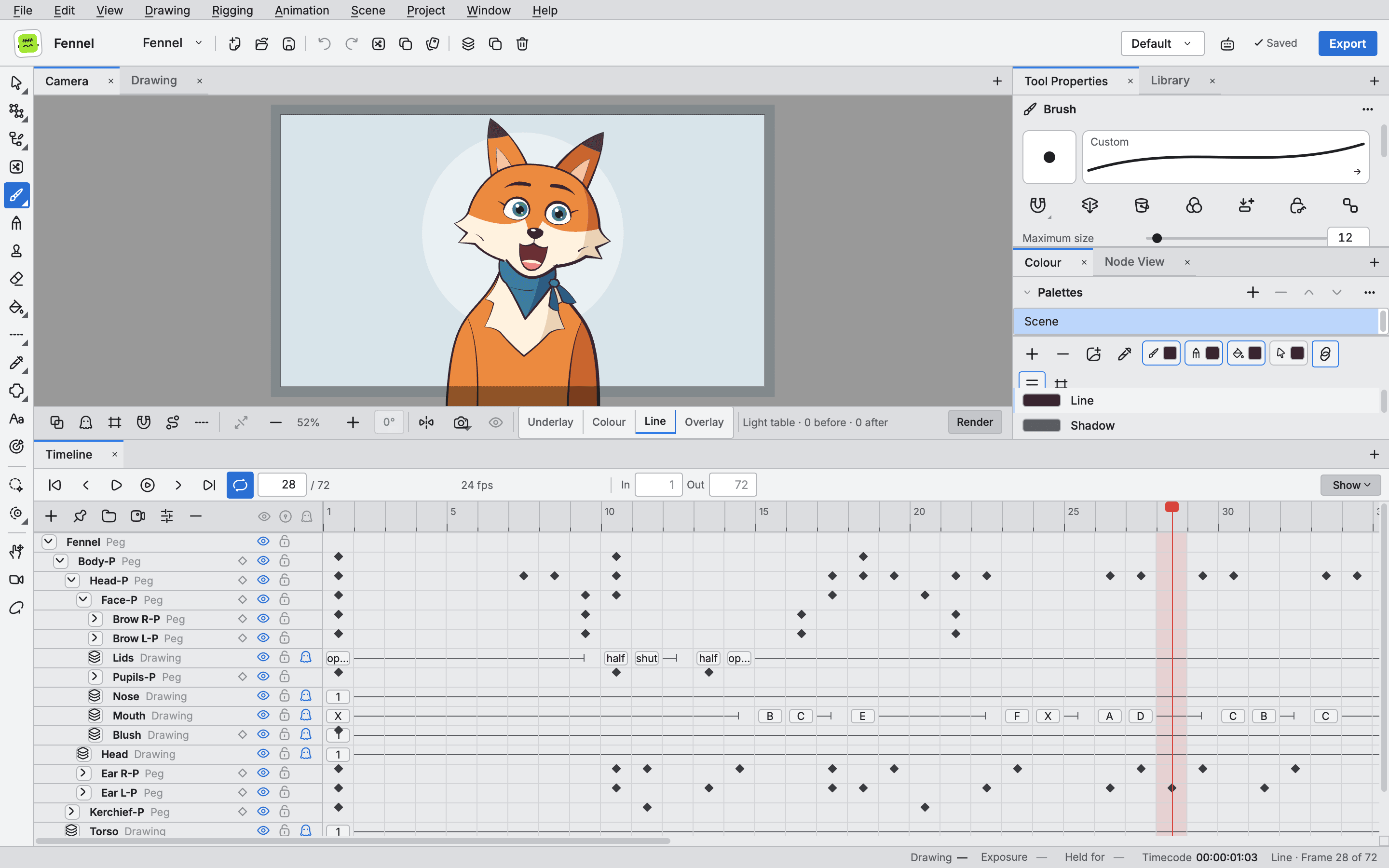
The Timeline shows every layer as a row and every frame as a cell, and the Xsheet shows the same timing on the traditional exposure sheet. Edit in either, shape your motion as curves in the Function view, and check the result in a player window.
- Timeline and Xsheet
- Curves with easing
- Morphing between drawings
- Sound locked playback
Rig
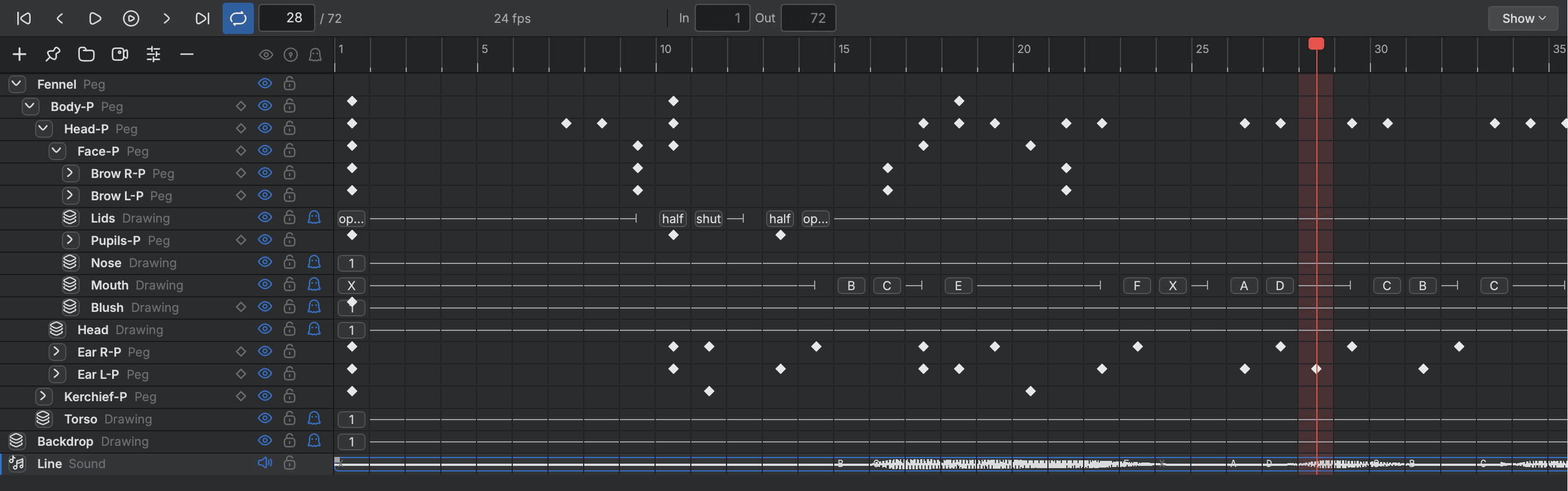
Rigging and animation control
Build a character from separate drawings, hang them on pegs and bend them with deformers instead of redrawing. A rig stays one character from frame to frame, and one control can drive many parts.
- Pegs and bones
- Inverse kinematics
- Deformers that hold volume
- Posing from one control
Also in the editor
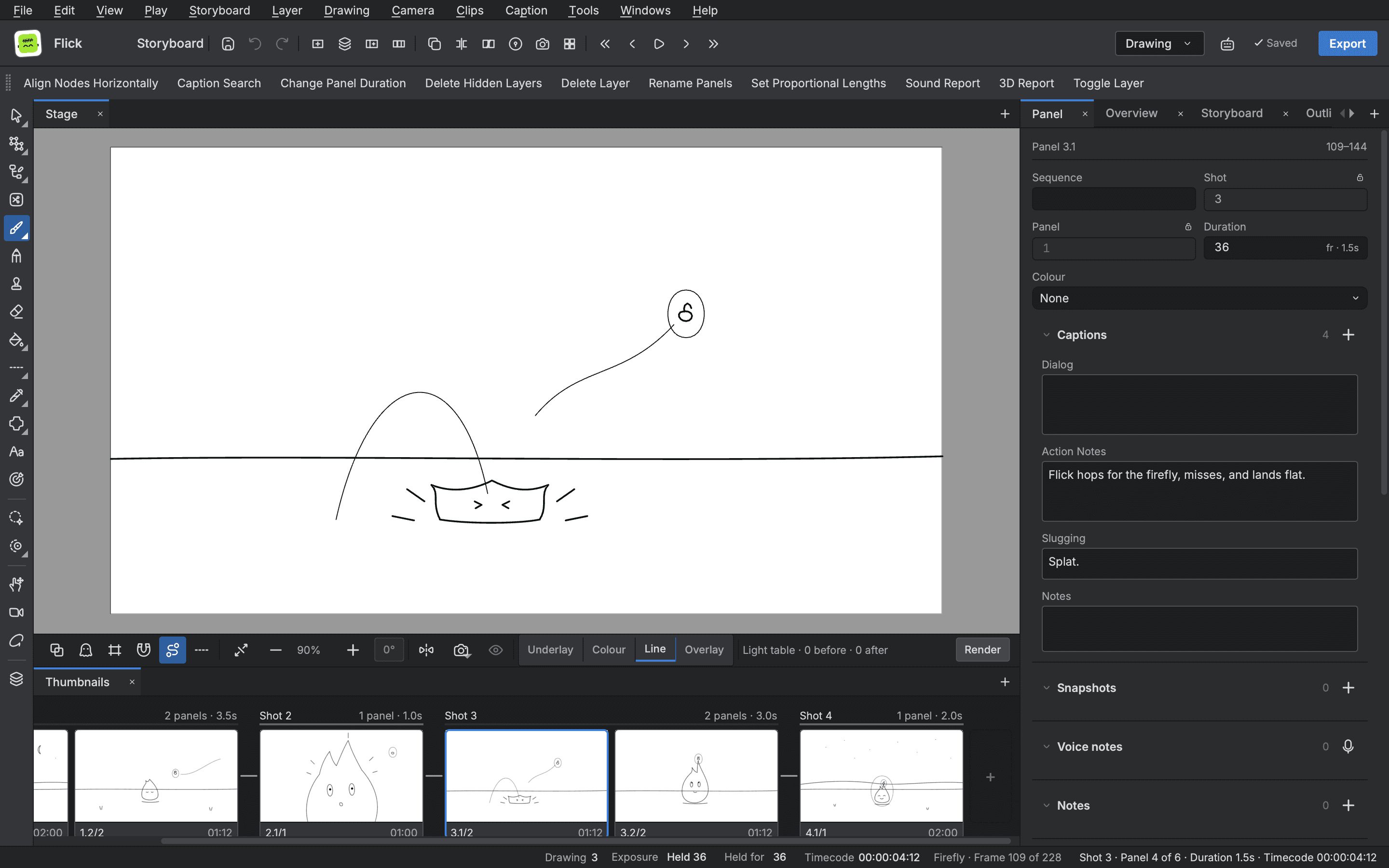
Storyboard
Panels, shots and sequences in the same editor, with the scenes they lead to.
Sound and lip sync
Bring in dialogue and music, see the waveform on the Timeline and hear it with the picture.
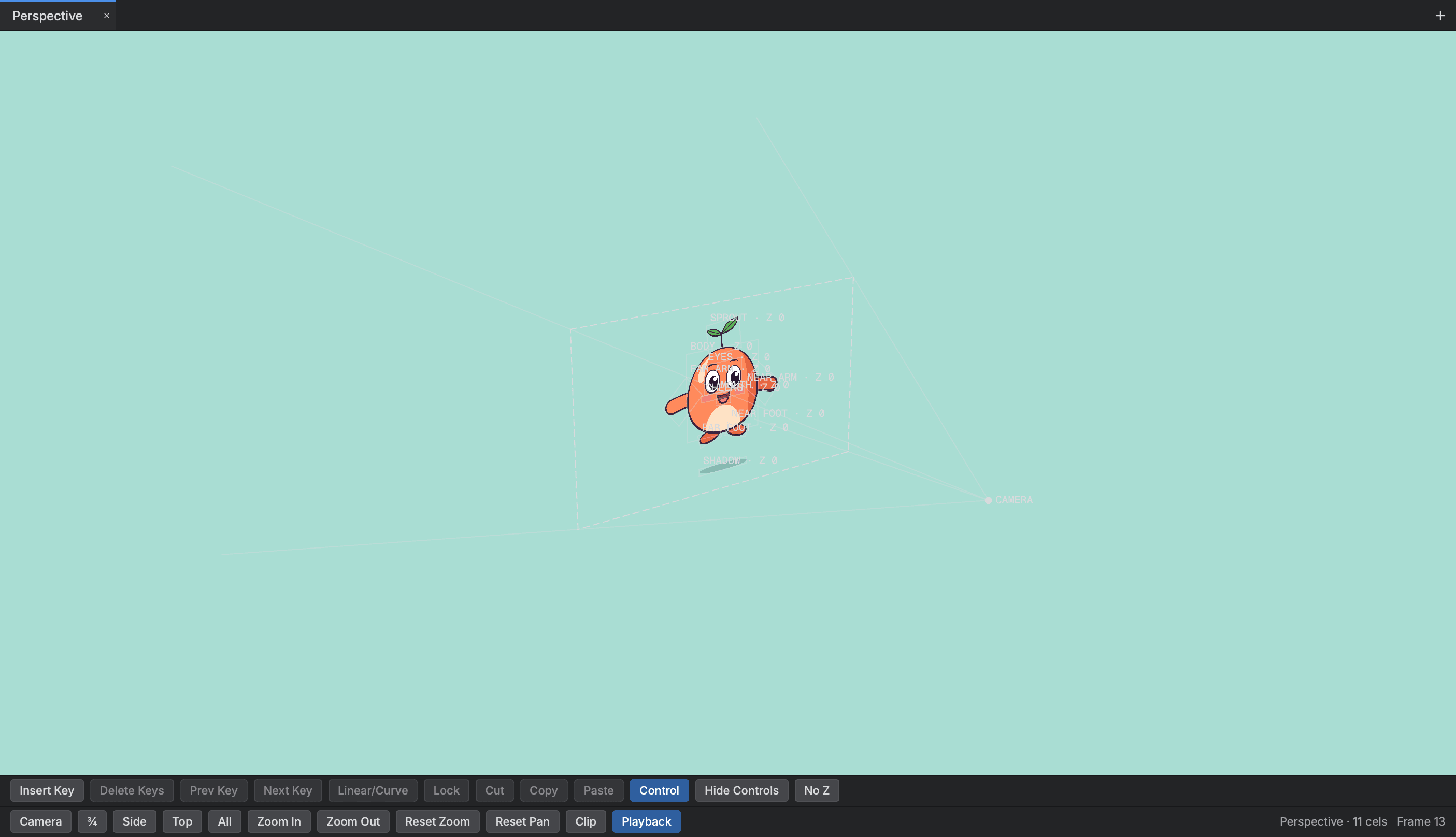
Camera and depth
A camera frame and lens, and a Perspective view to orbit the staged scene and check depth.
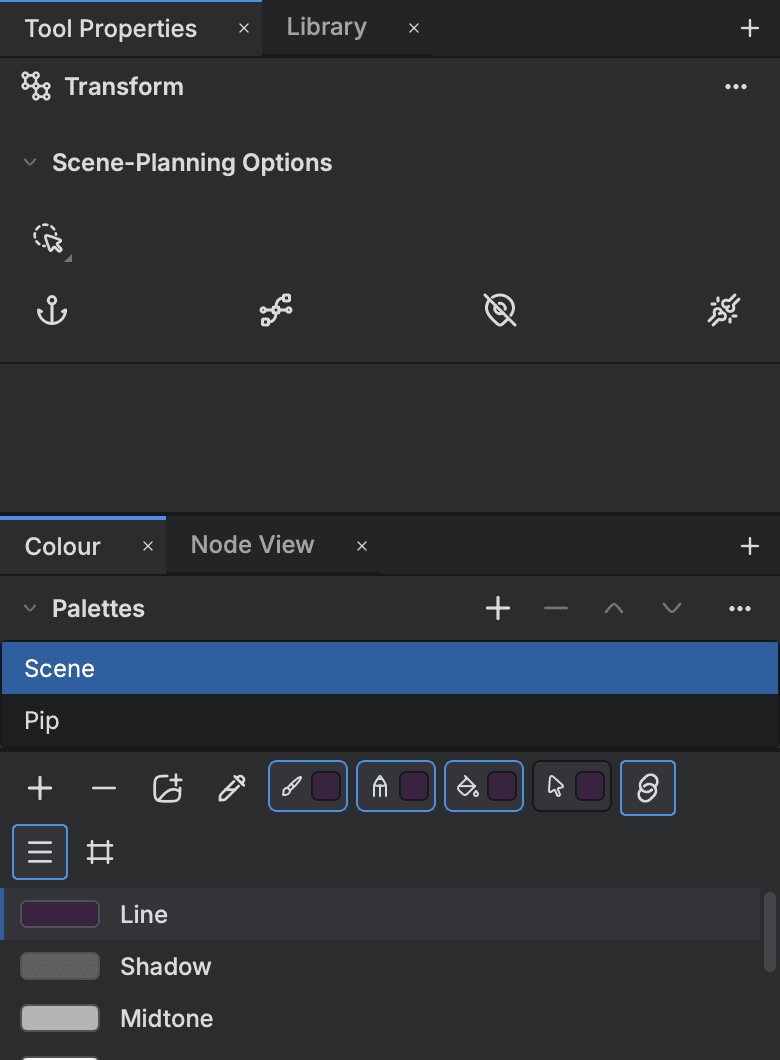
Colour
Palettes of named colours kept with the scene and edited in the Colour view.
Made in Buhayin
Work from the editor.
Finished pieces, each with a breakdown of how it was built.
Assistance
Help when you ask for it, under your direction.
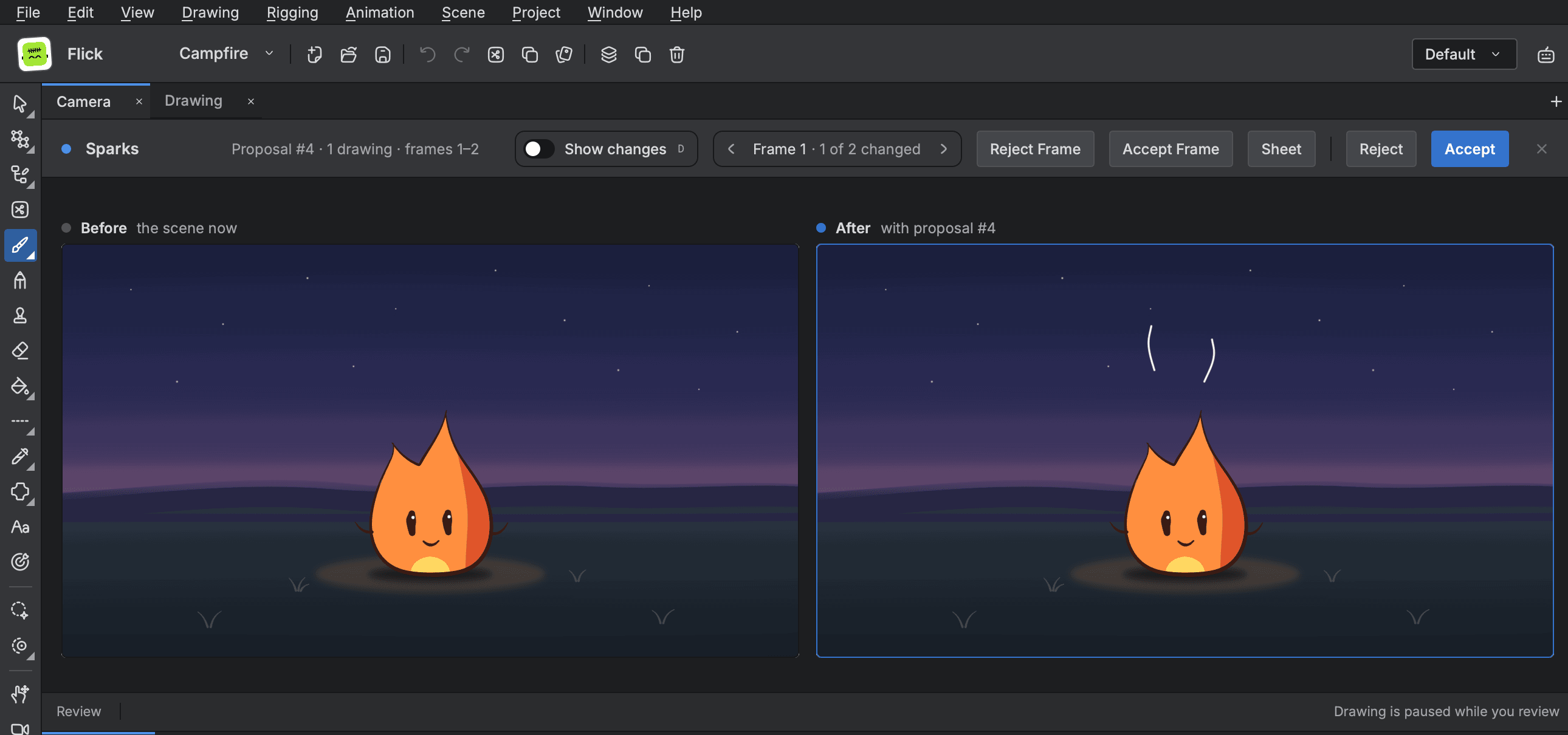
Buhayin keeps the artist in charge. An optional assistant can reproduce or adjust frames when you ask, and with Ask first nothing it proposes lands until you accept it.
- 01
You draw and direct
Every line and every pose is yours. The assistant is optional, and the editor works the same without it.
- 02
Ask for a change
Connected, an assistant can reproduce or adjust frames when you ask, and gives its reason for each change.
- 03
Accept or reject
With Ask first, each change waits on the stage. Keep all of it, part of it, or reject it with a note.
Scene graph and compositing
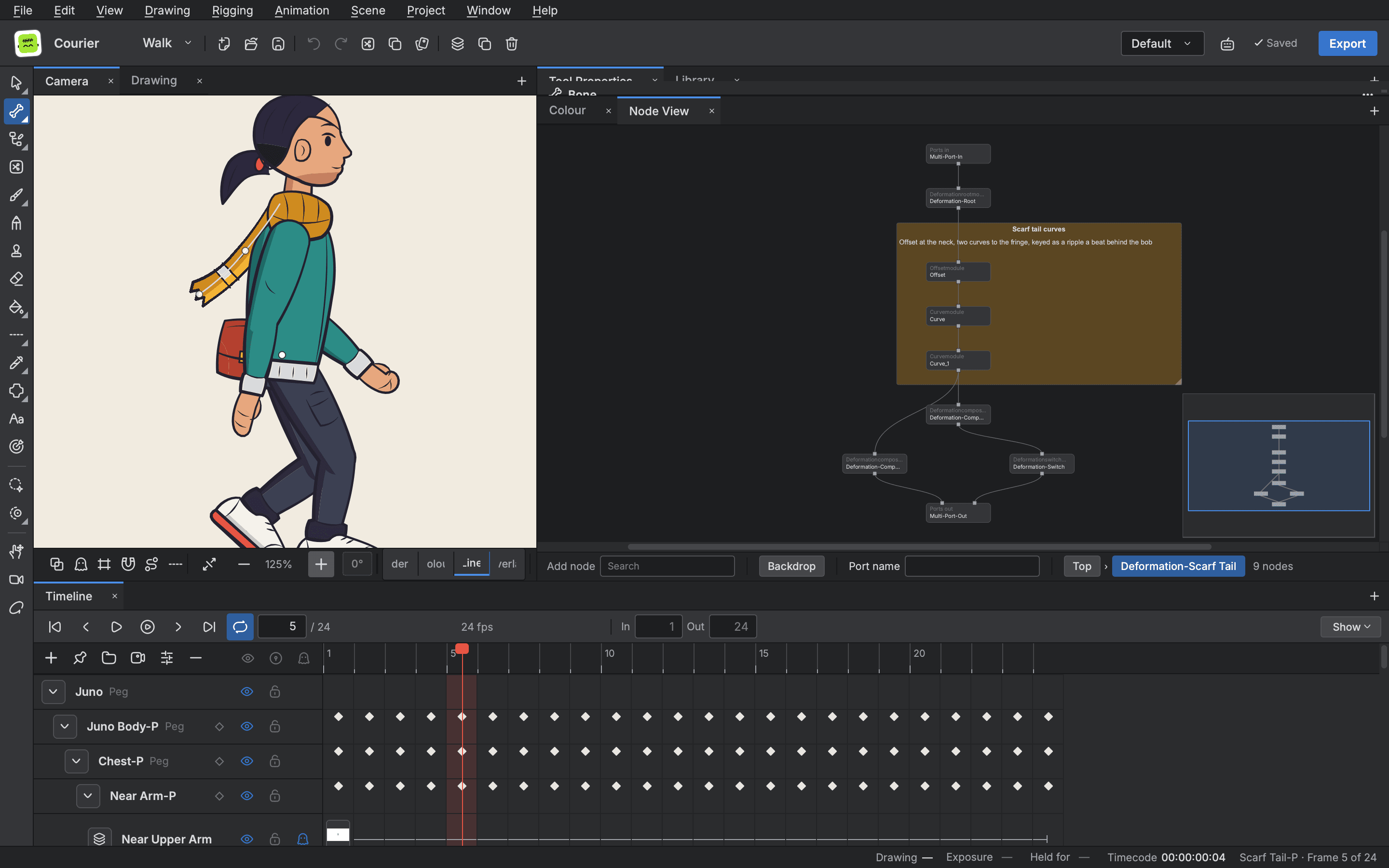
A scene is a graph you can read.
A scene is a graph of nodes joined by cables, and the node view shows it as it is stored. Layers, effects, mattes and the camera all hang on that one graph, so you can see how a frame is built.
Explore compositing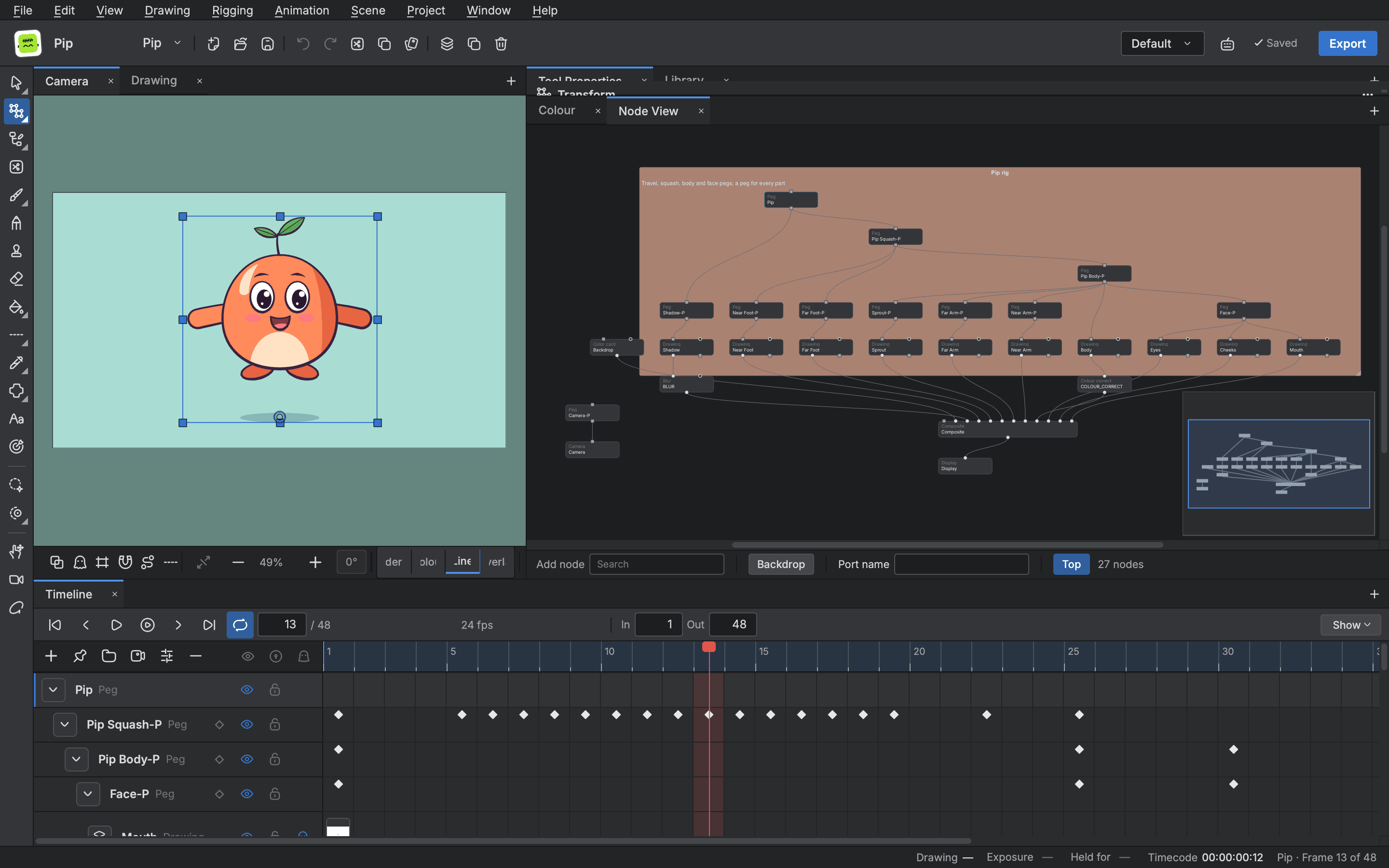
- The Node view
- Drawings, pegs, groups and effects joined by typed cables into a composite and a display.
- Effects
- 46 kinds of effect, worked on the graphics card where one is available.
- Blending and mattes
- 26 blend modes, and mattes made from your own lines.
- Groups and notes
- Group nodes, enter a group, and label areas of the graph with backdrops and notes.
Pipeline and extensibility
Scriptable, batchable and ready for a studio pipeline.
Script the editor in JavaScript, render and export scene files from a terminal with the editor's own code, and move work in and out in the formats a pipeline expects.
// Sound Report// Lists every sound clip of the project: the sound row, the sound,// the frame it starts on and how many frames it plays. const scene = await buhayin.scene()const tracks = scene.rows.filter((row) => row.kind === "sound")if (tracks.length === 0) { print("The project has no sound.") return}for (const track of tracks) { print(`Sound track: ${track.name}`) for (const clip of track.clips) { print(` ${clip.sound} · starts on frame ${clip.from} · ${clip.to - clip.from + 1} frames`) }}A script reads the whole scene as plain data and changes it with a list of edits that is one undo step. Scripting reference
# Check scenes, and put right what can be put rightbuhayin-cli check --fix scene.bhy # Render one frame, as the finished shotbuhayin-cli render scene.bhy --frame 12 --size half --out frame12.png # Export frames 1 to 48 as an MP4 moviebuhayin-cli export scene.bhy --format mp4 --frames 1-48 --out scene.mp4 # Run a script on scenes, writing the changed ones to a folderbuhayin-cli script cleanup.js a.bhy b.bhy --out cleanedThe command line tool checks, renders and exports scene files with no window, so a frame it renders comes out as it does from the editor. Command line guide
- Harmony scenes in
- Drawings and palettes read into Buhayin scenes, with a list of what could not come across.
- Formats out
- MP4, WebM and MOV movies, PNG, JPEG, TIFF, OpenEXR and layered PSD frames, GIFs, sprite sheets and Xsheet PDFs.
- Production board
- Follow every scene by stage, status, assignee and due date.
- Assisted frame operations
- An optional assistant edits the open scene through a local connection on your computer, and each change is one undo step.
Native desktop
A desktop application, built native for macOS.
Buhayin runs on your Mac, in a graphite dark theme, a light one or twelve more, and keeps your work on your computer.
- Native on the Mac
- A Rust core under a Qt 6 interface: one app on your computer, not a page in a browser.
- Effects on the graphics card
- Effects are worked on the graphics card where one is available.
- A picture cache
- What a scene has drawn is kept within one memory budget.
- Your files stay yours
- The app sends nothing off your computer. A project is a folder, and a scene a file in it.
- Arranged your way
- Dockable views, 12 ready made workspaces and shortcuts you can change.
- Four languages
- The interface speaks English, Spanish, Japanese and Simplified Chinese.
Which platforms does Buhayin run on?
Buhayin is a native desktop app for Macs with Apple silicon, on macOS 14.2 or later.
What does Buhayin cost?
The editor is free for everyone, with every drawing, animation, rigging, compositing and export tool included. The optional AI features are paid, and the pricing page has the details.
Do my projects stay on my computer?
Yes. A project is a folder on your computer, and each scene is a file in it. The app sends nothing about you or your work off your computer.
What can I bring in?
Harmony scenes with their drawings and palettes, SVG and PDF line art, pictures and picture sequences, layered PSD files, movies as a reference and sound files. A script can be imported into the storyboard.
What can I export?
Movies as MP4, WebM or MOV, frames as PNG, JPEG, TIFF, OpenEXR or layered PSD, animated GIFs, sprite sheets and an Xsheet PDF. Storyboard layouts are written out as PDF.
Can I batch render without opening the editor?
Yes. The command line tool renders and exports scene files, and scripts run over a scene from the script dock.
Does it work with a pen tablet?
Yes. The stage reads pen input from a tablet, and the brushes respond to pressure. The pen's pressure curve is set in Preferences.
Start animating in Buhayin.
The editor is free for everyone, with every drawing, animation and export tool included.
macOS 14.2 or later, on Apple silicon