
Scripting
What scripts are, where to run them and what they can reach.
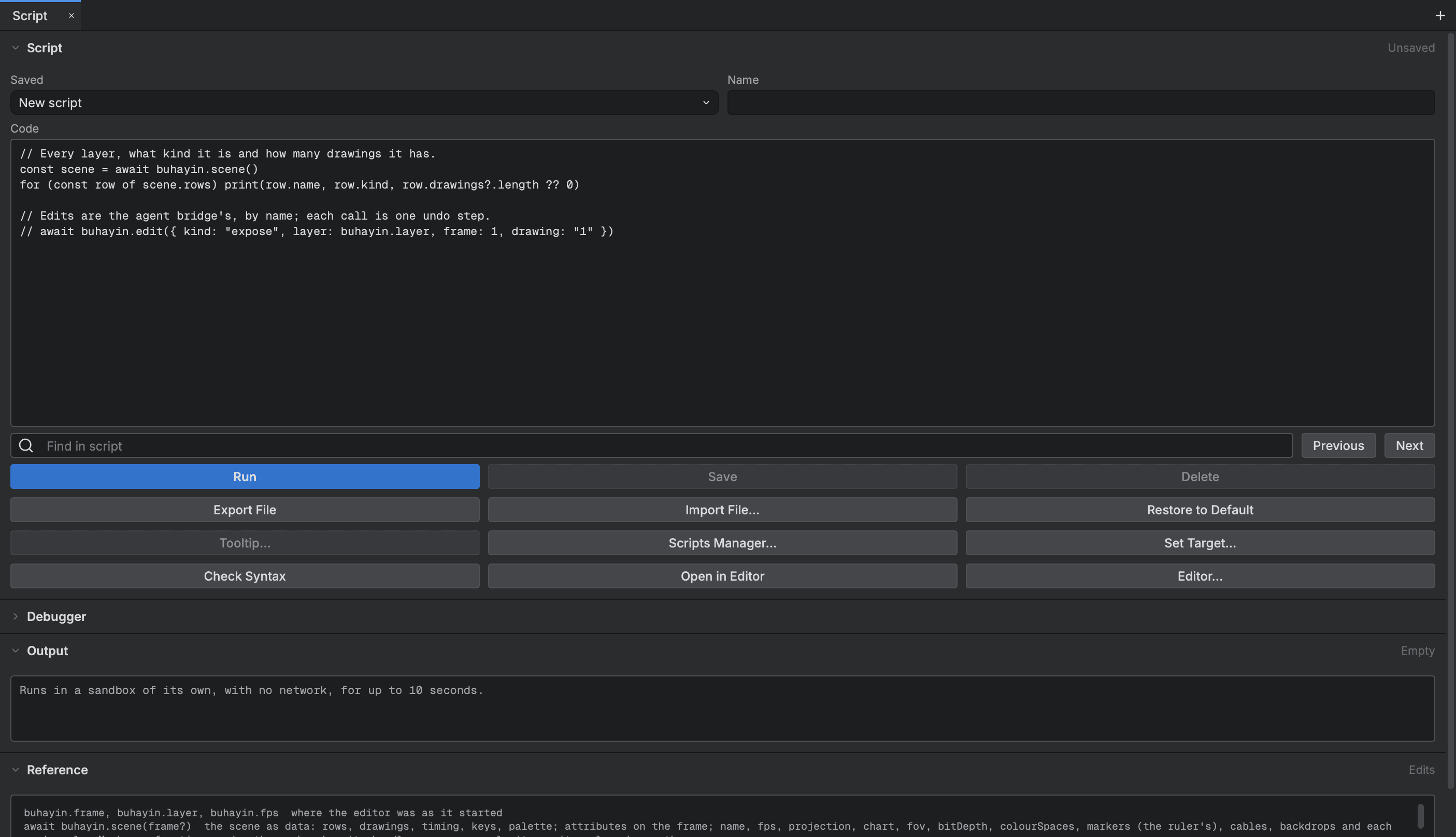
A script is a small JavaScript program that reads your scene and changes it. Use one when a job is the same on many layers or many frames: rename a set of layers, hide everything that is not selected, list every sound clip, or space nodes out in the Node view.
Every change a script makes lands as an ordinary undo step. Edit > Undo takes it back, the same as a line you drew.
Where to run a script
- The Script view. Open it from the Window menu. It holds the code box, the buttons and the output. This is the place to write and test a script.
- The Scripting toolbar. In the storyboard window, a saved script can have a button here. The toolbar is hidden until you turn it on in the Window menu.
- The command line.
buhayin-cli scriptruns a script file on scene files without opening the editor. The program is inside the app, atBuhayin.app/Contents/MacOS/buhayin-cli. See the command line tool. - The scripts folder. A file there can add a view or a menu command to the editor, or run by itself when a scene is created, opened or closed. See The editor and the section on scripts that run by themselves below.
The Help menu has three entries, Scripting Interface Documentation…, Extended Scripting Interface Documentation… and Script Node Documentation…. Each raises the Script view and opens its Reference at the calls, the edits or the nodes.
How a script runs
Your code is the body of an async function. That has two consequences.
- Use
awaitfreely. Every call that reads or changes the scene returns a promise. - You can write
returnat the top level to stop early. The sample scripts do.
A script sees these names:
| Name | What it is |
|---|---|
buhayin | Everything a script can call. The pages that follow list it. |
print(...), console.log(...) | Write a line to the output. console.info, warn and error do the same. |
Point2d, Point3d, Vector2d, Vector3d, Matrix4x4, Quaternion | Value classes for geometry. |
Dialog, MessageBox, Input, FileDialog, Action | Ask the animator, or run an editor command. |
A script has no network and no timers. fetch, XMLHttpRequest, WebSocket and the like are not there. A script reaches files, folders and programs only through buhayin.file, buhayin.dir and buhayin.process.
buhayin.debug.step is what Debug uses to stop at each line. You do not call it yourself.
buhayin.frame, buhayin.layer and buhayin.fps tell you where the editor was when the run began: the current frame, the current layer's name and the frame rate.
Limits
A run stops when it passes one of these.
| Limit | Value |
|---|---|
| Time | 10 seconds |
| Memory | 256 MB |
| Stack | 4 MB |
| Printed output | 1 MB |
Time spent waiting for you does not count against the ten seconds. That covers a question to you, a dialog, a program the script started, an editor command it performed, a render and a movie import.
The Script view
The view has three groups: Script, Output and Reference.
| Button | What it does |
|---|---|
| Run, Stop | Run the script, or stop the one running. Cmd+Return in the code box runs it too. |
| Save, Delete | Keep a script under the name in the Name box, or remove it. The Saved list holds every script you kept. |
| Export File, Import File… | Share a script as a file ending in .buhayin-script.js, or bring one in. |
| Restore to Default | Put the example script back in the code box. Saved scripts are untouched. |
| Check Syntax | Say whether the code parses and go to the line where it stops. |
| Open in editor, Editor… | Edit the script in another program. The code follows the file while that program saves it. Editor… chooses the program. |
| Tooltip…, Scripts Manager… | Give a saved script a tooltip, and arrange the Scripting toolbar. |
| Set Target… | Choose a function the run calls after the script has run. |
| Debug, Step, Continue | Run with stops at each line. Breakpoints takes line numbers. |
The code box indents with Tab and finds text with the search box above it. Its right click menu offers auto completion of the names a script can use.
Saved scripts belong to your computer, not to a project, so one script works on any scene.
Scripts that run by themselves
Four scene events run a script file from a folder called scripts, first in Buhayin's application data folder and then in the folder beside the scene file.
| Event | File | Function it calls |
|---|---|---|
| Scene created | TB_sceneCreated.js | TB_sceneCreated |
| Scene opened, before the window is built | TB_sceneOpenPreUI.js | TB_sceneOpenPreUI_Offline |
| Scene opened | TB_sceneOpened.js | TB_sceneOpened |
| Scene about to close | TB_sceneAboutToClose.js | TB_sceneAboutToClose |
These scripts get five seconds between them for an event. They never get in your way: whatever goes wrong becomes a line in the Message Log. A scene about to close goes on closing only when the function returns true, or when the script failed.
Files ending in .view.js in the same folder can add a view of controls and menu commands. They are covered on the editor page.
A script you did not write
A script can read and write any file your account can, and start any program. Treat a script from someone else as you would a program from someone else, and read it before you run it.